
Calendar content can be submitted on the Compose page.
If you’re announcing multiple or multi-day events, avoid creating separate Forum postings for each one. This can overwhelm your Forum. Instead:
- Select the “Forum Only” option and submit a single Forum posting in the “Announcement” category that lists all of your events together.
- Then, use the “Calendar Only” option to add each event to the Calendar separately.
Event Categories
The “Calendar Only” option is available for content in these categories:
- Event
- Announcement
- Housing and Real Estate
- Election
Event Limits
Every event submission counts toward your profile's monthly event limits. This includes “Calendar Only” events, and each individual instance of a multi-day (or “repeating”) event. Learn more.
Create a Repeating Event
If your event times vary, submit them as separate "Calendar Only" events as described above. If, however, your event repeats at the same time of day on a regular daily, weekly, or monthly schedule, you can add multiple dates at once:
-
Enter your initial event “Start date.” Then, add the “Start time” and “End time.” Skip adding an “End date.”

-
Next, check the "This is a recurring event" box:

-
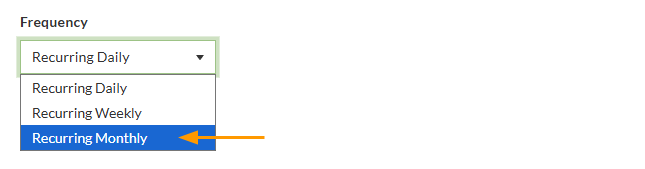
Under “Frequency,” select your preferred schedule from the dropdown menu (recurring daily, weekly, or monthly).
-
Set how often the event repeats (e.g. "Every 1 month" or "Every 2 weeks"):

-
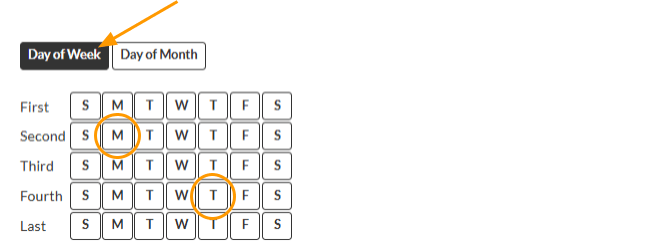
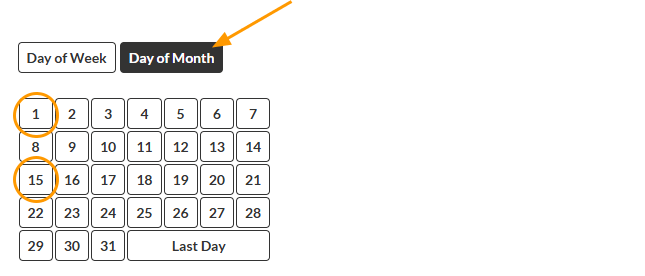
If applicable, select the specific day(s) of the week or month your event occurs on using the grid:
-
Then, enter the date of your final event in the “Until” field (a maximum of 3 months since your event’s “Start date”).

-
Add your event details and click the “Submit” button.
Delete Repeating Events
First, visit your My Submissions page. Then, find the event in the list and click the "Delete" or "Cancel this event" button. If you need to cancel one specific date within a series, please contact Member Support.